Switch back to main site : Click Here


If you use QuickBooks Online bookkeeping software to manage your financials, you already know how powerful it can be. It’s one of the most widely used accounting platforms for a reason, especially for growing teams and companies using QuickBooks for small business.
But what happens when you need to create not one invoice… not ten… but hundreds? That’s where bulk transaction workflows matter.
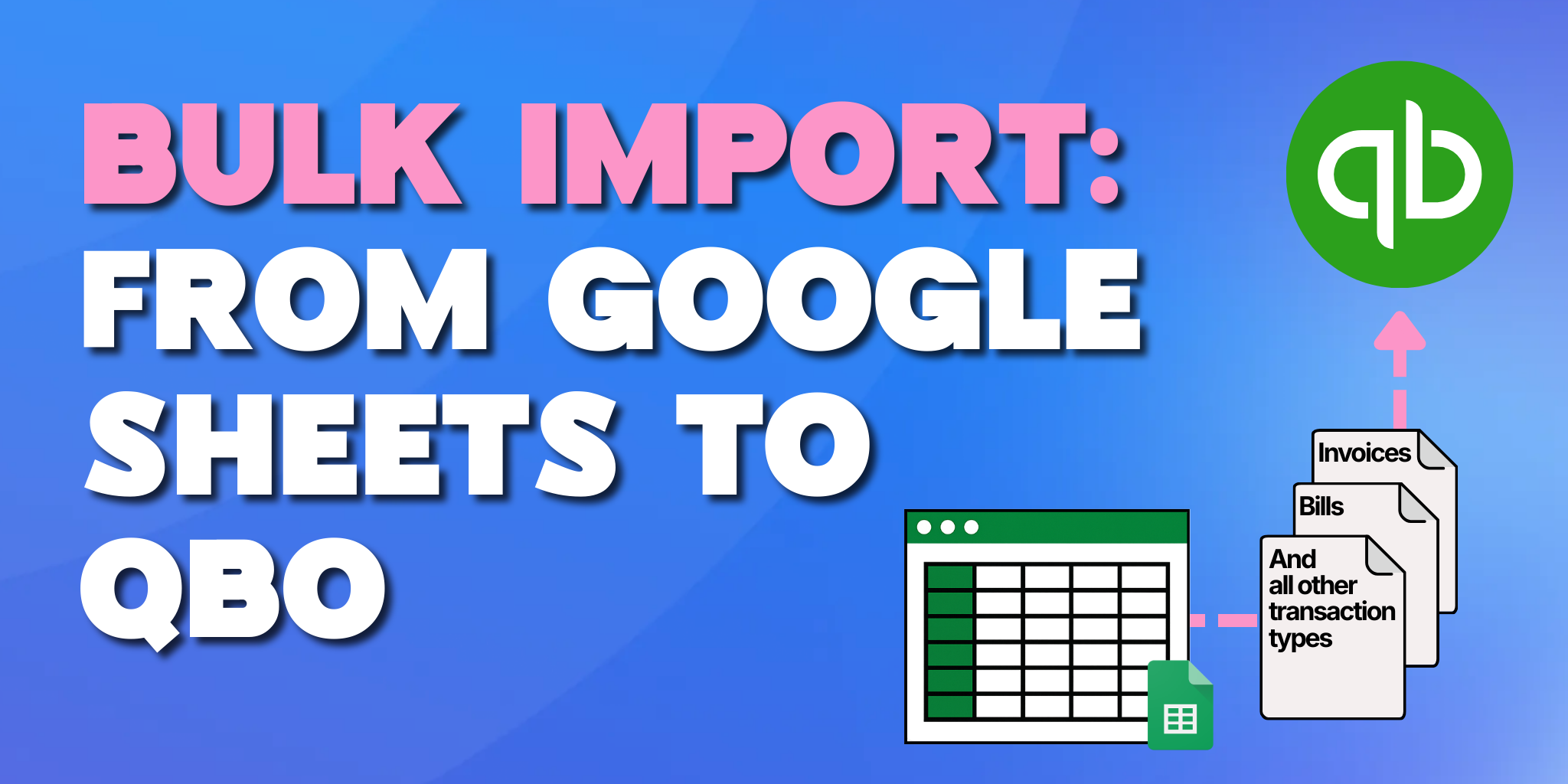
In this guide, we’ll walk through how to bulk import transactions into QuickBooks using Google Sheets, and how tools like Booker Unlimited make the process faster, cleaner, and more scalable without relying on traditional CSV uploads.
QuickBooks absolutely provides ways to import data. For many businesses, that’s incredibly helpful. However, depending on your subscription tier and workflow complexity, bulk entry can sometimes feel limited or rigid, especially when you need more flexibility or recurring high-volume uploads.
For example, teams often need to:
If you’re doing this frequently, the goal isn’t to replace QuickBooks—it’s to extend it. That’s where Google Sheets + Booker Unlimited becomes powerful. Instead of exporting CSVs, adjusting formatting, re-uploading, and troubleshooting errors, you can work inside a live spreadsheet that syncs directly with QuickBooks.
As a result, you reduce manual data entry, maintain better visibility, and keep your workflows flexible.
Booker Unlimited connects QuickBooks to Google Sheets, allowing you to:
Unlike static CSV imports, this workflow is dynamic.
You build or populate a structured Google Sheet with transaction details such as:
When you click “Book,” Booker sends that data directly into QuickBooks and creates the transactions automatically.
Even better: once the process finishes, QuickBooks-generated values (like invoice numbers) can flow back into the sheet.
This approach gives accounting teams the flexibility of spreadsheets with the structure and integrity of their accounting software.
Let’s walk through how bulk invoice creation works in practice.
Inside Google Sheets, you enter your invoice details just like you would in QuickBooks—but in rows instead of forms.
Each row represents an invoice line and includes key data fields. You can prepare dozens, hundreds or even thousands of invoices at once.
Because you're working in Sheets, you can use formulas, autofill, and copy-paste tools to speed up preparation.
This is especially helpful for:
Once your sheet is ready, you simply click the “Book” button.
Booker processes the data and sends it to QuickBooks. In a matter of seconds, the transactions are created inside your QuickBooks.
There’s no exporting, reformatting, or uploading CSV files. Everything happens directly within your existing QuickBooks environment.
After the booking process completes, you can refresh your QuickBooks transaction report and see the newly created invoices immediately.
All records follow your existing QuickBooks structure, rules, and permissions.
This makes the workflow seamless for teams already comfortable with QuickBooks for small business—there’s no learning curve inside the accounting system itself.
One of the biggest friction points with bulk imports in many tools is invoice numbering.
If invoice numbers are duplicated, out of sequence, or manually assigned incorrectly, you can end up with messy records or reconciliation headaches.
Here’s where Booker Unlimited stands out.
If you leave the invoice number column blank in your sheet, Booker automatically pulls the next sequential invoice number from QuickBooks and assigns it correctly.
Then, it writes that number back into your sheet once the booking process finishes.
That means:
And if you do want to assign specific invoice numbers manually, you can still do so.
The flexibility is yours—but the automation is built in.
For teams managing high-volume billing, this feature alone can eliminate hours of manual review and corrections.
Bulk transaction workflows help you achieve operational efficiency.
Here are some common use cases where this approach creates real leverage:
Companies that invoice customers monthly or quarterly often generate large batches of similar invoices. Google Sheets makes it easy to duplicate patterns and adjust variables before booking everything at once.
If you’re classifying revenue across classes, departments, or projects, spreadsheets provide flexibility for calculations before pushing finalized entries into QuickBooks.
When transitioning into QuickBooks or cleaning up historical records, bulk editing and importing can dramatically reduce project timelines.
Month-end close often involves repetitive entries. Using a sheet-based workflow allows you to batch those entries and reduce manual data entry significantly.
Instead of keying information into forms one transaction at a time, your team can operate in bulk.
As companies grow, transaction volume increases. What worked at 50 invoices per month doesn’t scale to 500 or 5,000.
Extending your accounting software with spreadsheet automation ensures your processes grow with you.
QuickBooks for Growing Business is built to be intuitive and accessible.
But small and mid-sized businesses are often the ones that feel manual workload pressure the most. They don’t always have large accounting teams or extra headcount to handle repetitive tasks.
By combining QuickBooks with Google Sheets automation:
This doesn’t replace QuickBooks; it makes it more scalable.
Spreadsheets aren’t going away—and neither is QuickBooks. The smartest accounting teams don’t choose between them. They connect them.
By using Booker Unlimited to bulk import transactions into QuickBooks from Google Sheets, you get:
If your team regularly creates large volumes of invoices—or simply wants a cleaner way to manage transaction entry—this workflow can dramatically streamline your operations.
The best part is that it works directly with the accounting software you already use. Book a demo to learn more about how Booker Unlimited can adapt to your operations.